Users who set out to download Signal messenger often run into a handful of operational surprises almost immediately. There is no browser-based web login, messages can appear to stall on a single checkmark for reasons that are not obvious, and the app still asks for a phone number despite its privacy-first reputation.
Mainstream overviews of the app tend to describe it as “another end-to-end encrypted messenger” and stop there, skipping past the mechanical details that actually explain how it behaves: local cryptographic key management, hardware-enclave-based contact matching, and the way aggressive mobile battery optimization can quietly interfere with delivery.
This guide takes a different approach. It verifies how Signal actually functions across mobile and desktop hardware — covering the zero-metadata sealed sender transport, the cross-device linking process, and how local storage retention works without any cloud exposure.
LEVELZA built this guide from confirmed client behavior, official repository specifications, and live cross-platform testing across production builds, not from marketing copy.
What is Signal?
Signal is an open-source, non-profit messaging utility built and maintained by the Signal Technology Foundation, a registered 501(c)(3) nonprofit. That structural detail matters more than it first appears: Signal carries no venture capital investors expecting a return, runs no advertising network, and has no business model built around behavioral profiling. Its revenue comes from grants and user donations rather than data monetization, which is a structural divergence from most commercial messaging conglomerates that dominate app store rankings.
This nonprofit foundation underpins the technical architecture described throughout this guide — from the Signal Protocol’s cryptographic guarantees to the deliberate absence of cloud backups.
Cryptographic Foundation: The Signal Protocol & Zero Metadata
At the core of every conversation sits the Signal Protocol, an open-source cryptographic framework combining a Double Ratchet Algorithm with pre-generated one-time keys and a Triple Diffie-Hellman (3-DH) handshake. Together these establish forward secrecy — meaning that even if a single encryption key is somehow compromised, past messages remain unreadable — and break-in recovery, meaning the protocol automatically re-secures future messages after a compromise event.
Signal also deploys Sealed Sender technology, which encrypts the identity of the message’s sender inside the message envelope itself. Signal’s own routing servers can see only where a message needs to be delivered, not who sent it. This is a meaningful distinction from typical “encrypted” messaging apps, many of which encrypt message content but still leave metadata — who talked to whom, and when — fully visible to the server operator.
Private Contact Discovery & Hardware Enclaves
Signal needs to determine which of your phone contacts are also Signal users, but it does this without ever uploading your plain-text address book to a central server. Contact numbers are cryptographically hashed on-device, and the matching process runs inside a hardware secure enclave (based on Intel SGX-style isolated execution environments) that Signal’s infrastructure cannot inspect even with direct server access. The practical result is a working “contacts on Signal” feature that never exposes your raw address book to anyone, including Signal itself.
Persistent Delivery: Background Sockets and Push Wake-Ups
Signal’s real-time delivery depends on maintaining an open connection between the client and Signal’s servers, but mobile operating systems are not designed to let any app hold a socket open indefinitely in the background. On Android, Signal works around this using a foreground service alongside Firebase Cloud Messaging (or its own UnifiedPush-compatible fallback on de-Googled builds) to wake the app briefly when a message arrives, rather than relying on a continuous WebSocket connection draining the battery around the clock.
On iOS, the same problem is solved through Apple’s Push Notification service, which delivers an encrypted wake signal that prompts the app to briefly reconnect and pull pending messages before the operating system suspends it again. This is precisely why a device that is powered off, in extreme low-power mode, or subject to an aggressive manufacturer-specific battery optimization profile can silently miss its wake signal — the message is sitting safely on Signal’s server, encrypted and undelivered, until the device checks in again.
How to Download Signal Messenger and Complete Initial Setup
Getting Signal running across a phone and a desktop machine is a two-phase process, and the order matters: the mobile client must be established first, because the desktop client depends entirely on it.
Phase 1: Mobile Client Verification & Privacy Hardening
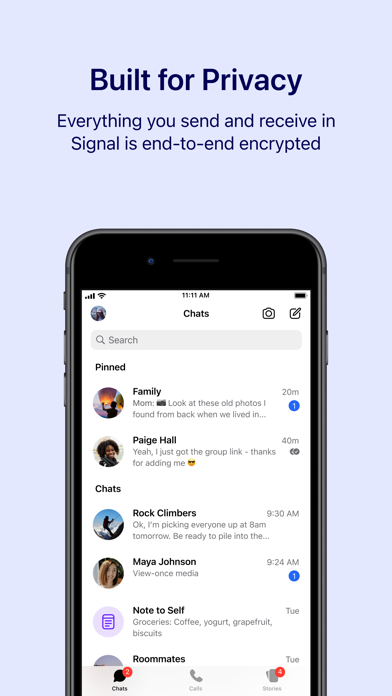
After installing the mobile app from an official app store, registration follows a standard pattern: enter a phone number, confirm it through an SMS or voice-call token, then set a PIN used to restore your account profile (not your message history) if you ever reinstall.
Two settings deserve immediate attention rather than being left for later:
- Registration Lock — found under account security settings, this prevents someone from hijacking your Signal account through a SIM-swap attack, since re-registering your number on another device would otherwise be enough to take over the account.
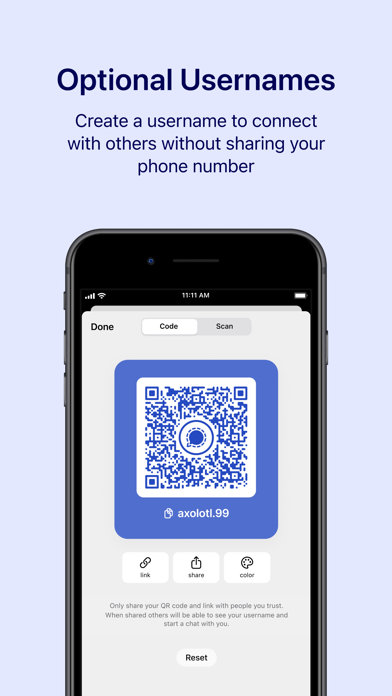
- Signal Usernames — a separate identifier you can generate so that new contacts can reach you without ever learning your actual phone number.
Phase 2: Pairing the Standalone Desktop Client
Signal Desktop, available for Windows, macOS, and Linux, is architecturally a companion client rather than an independent one. It cannot register on its own; it must be provisioned by an already-active mobile account.
To link it, open the mobile app and navigate to Settings → Linked Devices → Link New Device, then scan the temporary, time-limited QR code that the desktop installer displays. During this handshake, the desktop client generates its own unique identity key pair locally and receives the synced conversation state from the mobile device over an encrypted channel — it does not simply mirror the phone’s storage, it establishes its own cryptographic identity within your account.
That distinction matters operationally: because the desktop client is its own independent participant in the Signal Protocol’s key exchange rather than a passive mirror, unlinking it from Settings → Linked Devices immediately revokes its ability to decrypt any further messages, without requiring any change to the mobile device’s own keys.
Key Features
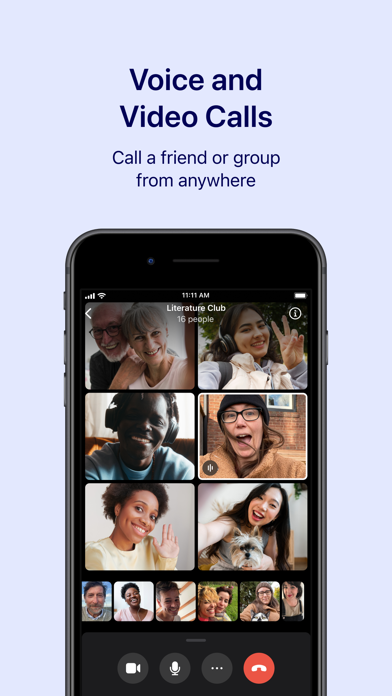
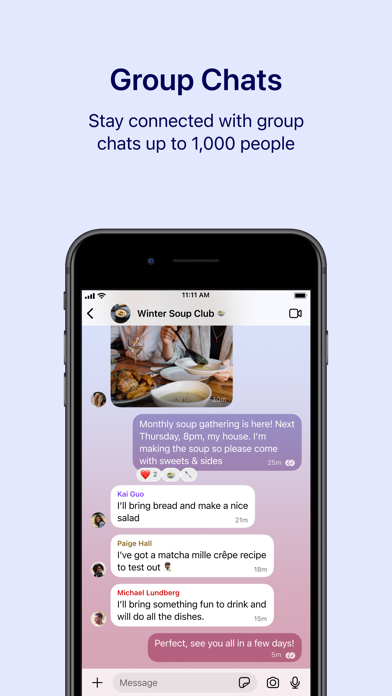
- End-to-End Encrypted Group Communication: Supports fully encrypted voice calls, video meetings with dozens of participants, and large group messaging threads with decentralized admin controls and encrypted group metadata.
- Sealed Sender Transport Protocol: Strips sender metadata from outbound message headers so that routing infrastructure can deliver a message to its destination without ever recording who originated it.
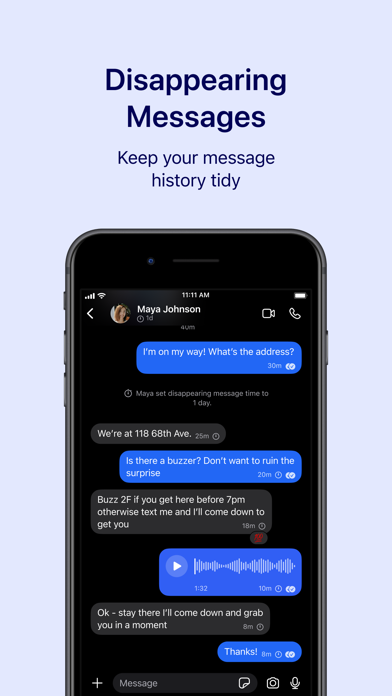
- Granular Disappearing Messages: Configurable per-chat ephemeral timers, enforced locally across every recipient device, letting a conversation range from a long-term record down to a message that vanishes almost immediately after being read.
- Encrypted Local Storage & Zero Cloud Backups: Chat histories and attachments live solely on local device storage; there is no remote cloud backup sitting on external infrastructure that could be subpoenaed or breached.
- Hardware Enclave Contact Discovery: Matches your phone contacts against the Signal user base using isolated hardware enclaves, so unencrypted address book data is never exposed to server memory.
- Phone Number Privacy & Alphanumeric Usernames: Lets users establish a rotatable public handle for peer discovery while keeping their actual mobile number concealed from anyone they haven’t explicitly shared it with.
Pro Tip: Mobile Account Migrations Require Local Device Direct Transfer
Because Signal does not host cloud backups, upgrading your smartphone requires keeping your old phone powered on and nearby during the switch. On iOS, initiate a device-to-device Wi-Fi migration through Settings → Account → Transfer Account. On Android, use the passphrase-protected local backup tool to generate an encrypted export onto local storage before resetting the old hardware.
Security Warning: Beware Modified APKs, Fake Desktop Installers, and Phishing Sites
Signal’s open-source codebase is periodically recompiled by bad actors into unofficial builds that carry hidden spyware. Never install modified APK packages, third-party “web wrapper” logins, or browser extensions claiming to provide independent Signal access. Installers should come exclusively from the official app stores, verified package repositories, or Signal’s own direct domain.