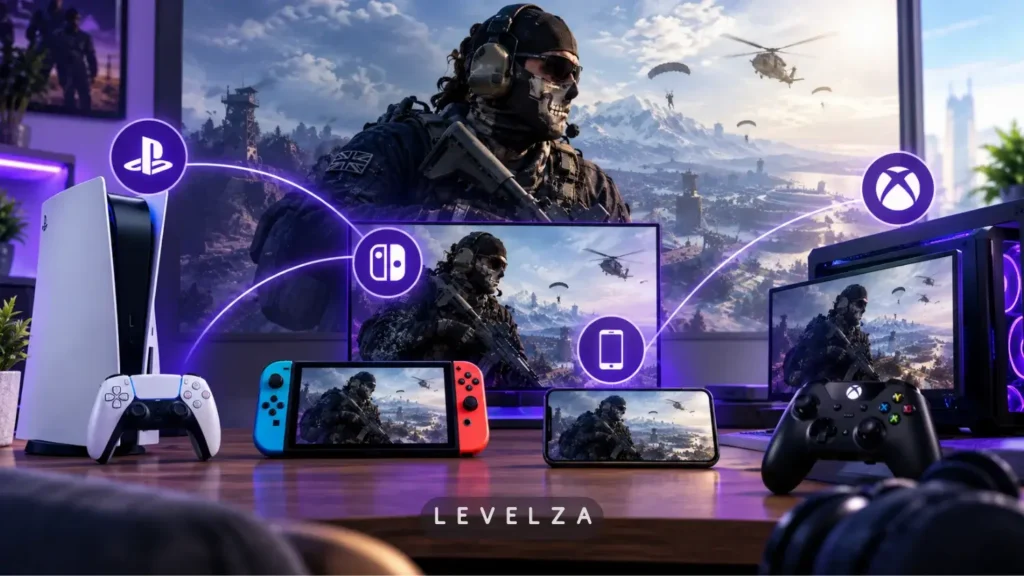
Understanding how to crossplay Call of Duty Warzone lets squads on Windows PC, PlayStation 5, and Xbox Series X|S drop into the same lobbies with synchronized progression and low-latency voice. The cross-platform framework is enabled by default, yet players regularly hit party-joining failures caused by hidden Activision ID tags, mismatched console privacy permissions, and restrictive NAT routing.
Generic tutorials tell players to “add a friend” and stop there. They skip the numerical discriminator system, the platform-level communication locks, and the native console Discord integrations that bypass in-game voice chat bugs. LEVELZA provides the technical setup path for Call of Duty: Warzone so cross-platform parties stay synchronized on every desktop and console.
LEVELZA QUICK SUMMARY
Objective: Form seamless cross-platform squads and establish crystal-clear party voice chat between PC, PlayStation, and Xbox.
Prerequisites: Active Activision Account, unique full Activision ID (including the numerical suffix after the # sign), and Crossplay toggled ON in account settings.
Key Configuration Checklist:
- Account Setting: Crossplay enabled; Crossplay Communication enabled.
- Identification: Search friends using their complete Activision ID, not their local console Gamertag or PSN ID.
- Voice Optimization: Set Game Voice Channel to “Party Only” or connect through native PS5/Xbox Discord integration to avoid in-game loading screen mutes.
Estimated Setup Time: Under 5 minutes.
Prerequisites Checklist
Crossplay failures usually trace back to account and network state, not the game menus. Confirm these four items before inviting anyone.
- Verified Activision Account: Make sure your platform account (PlayStation Network, Xbox Live, Steam, or Battle.net) is linked at
callofduty.comunder Account Management > Linked Accounts. An unlinked account cannot appear in the cross-platform friend system. - Full Activision ID with Discriminator: Locate your complete username, including the numerical suffix after the pound sign, such as
PlayerName#1234567. Modern accounts cannot be discovered without these digits. - Network NAT Type Status: Verify in Settings > Account & Network that your NAT type is Open or Moderate. A “Strict” NAT type can block you from hosting crossplay lobbies or hearing players on other platforms.
- Console System Privacy Permissions: Xbox players must allow cross-network play at the system level. Go to Settings > Account > Privacy & online safety > Xbox privacy > View details & customize > Communication & multiplayer > You can join cross-network play: Allow.
Step-by-Step Setup: How to Crossplay Call of Duty Warzone
The six steps below cover account toggles, friend requests, party formation, and audio routing. Every player in the squad should complete Steps 1 and 5 on their own platform.
Step 1: Enable Crossplay and Crossplay Communication in Settings
These two toggles decide whether you match with other platforms and whether you can speak to them.
- Launch the Call of Duty HQ client from your desktop or console.
- Press the Options / Menu Button (or click the Gear Icon in the top-right corner) and navigate to Settings > Account & Network.
- Under the Online tab, locate Crossplay and set it to On.
- Directly below it, locate Crossplay Communication and set it strictly to On.
If Crossplay Communication is disabled, you can play in the same match as friends on other platforms, but neither side will hear voice chat.
Step 2: Locate and Share Your Full Activision ID
Your friends need the exact string, so copy it carefully.
- In the top-right corner of the main menu, click your Player Rank Badge or press the corresponding controller button (R3 / Right Stick).
- Select your profile card to view your complete Activision ID.
- Note the full string, including exact casing and the numerical identifier following the hashtag, such as
ShadowSniper#9876543. - Share this exact string with your squadmates on other platforms.
Step 3: Send and Accept Cross-Platform Friend Requests
The search filter is the detail most players miss.
- Open the social menu by selecting the Headphones / Social Icon (or press the Touchpad / View Button).
- Navigate to the Friends tab and select Add Friends.
- Make sure the search filter is toggled to Activision ID, not PSN or Xbox Live Gamertag.
- Type your friend’s complete ID into the search bar and select Send Request.
- The receiving player opens Social Menu > Notifications / Friend Requests and selects Accept.
Step 4: Assemble the Crossplay Squad Lobby
Once the requests are accepted, building the party takes a few clicks.
- Navigate to the Friends tab in the Social menu.
- Locate your friend under the Activision Friends section, marked by a PC monitor, PlayStation badge, or Xbox badge.
- Highlight their name, click or press Action, and select Invite to Party or Join Game.
- Once everyone enters the lobby, the party leader should check the bottom-left party widget. Every member should show an active microphone and a green connection status.
Step 5: Configure In-Game Crossplay Voice Channels
Correct voice routing prevents most mid-match communication problems.
- Navigate to Settings > Audio > Voice Chat.
- Verify that Voice Chat is toggled On.
- Set Voice Chat Output Device to your preferred headset or monitor output.
- Set Game Voice Channel to Party Only. This isolates communication to your squadmates and mutes proximity chat from opposing players during load-in screens.
- Adjust Open Mic Sensitivity, with a starting range of 65–75, to keep keyboard clicks and fan noise off the party channel.
Step 6: Managing Platform Crossplay Restrictions (Console Settings)
Platforms differ in how much control players have over crossplay.
- PlayStation players: You can toggle Crossplay to Off directly in the in-game Account & Network menu to restrict matchmaking to PSN players only.
- Xbox and PC players: The in-game toggle is locked to On. Xbox players who want to avoid PC lobbies must enforce restrictions through Xbox OS settings, which can increase matchmaking queue times significantly.
Pro Tips
LEVELZA OPERATIONAL TIP: Direct Discord Integration on PS5 & Xbox
Call of Duty’s in-game voice chat frequently cuts out during map transitions, loading screens, and title updates. Both PlayStation 5 and Xbox Series X|S support native Discord voice channels.
Connect your Discord account to your PlayStation Network or Xbox Live profile in your console system settings. Discord voice stays active continuously, even if a squadmate’s game client crashes to the desktop or dashboard mid-match.
Common Mistakes to Avoid
Three configuration errors account for most failed crossplay parties.
Omitting the Numerical Hashtag Identifier
Searching only for a player’s vanity handle returns zero useful results. Thousands of players can share identical display names across the unified Activision database. The numerical suffix is what makes each account unique, so always send and search the complete string.
Leaving Crossplay Communication Disabled While Crossplay Is Enabled
This configuration creates the illusion of a broken microphone. Players can see squadmates moving in the lobby, but the game engine keeps voice channels permanently muted. Check Step 1 on every squadmate’s account before troubleshooting headsets or drivers.
Strict NAT Routing Collisions
When two players both have “Strict” or “Type 3” NAT, network firewalls can block the direct peer-to-peer connection needed inside a shared squad lobby. The result is failed joins or silent party members. Moving at least one player to Open or Moderate NAT usually resolves it. If a console player cannot even reach the game, the Warzone not launching on Xbox guide covers startup fixes.