


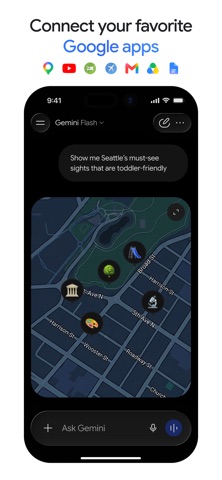
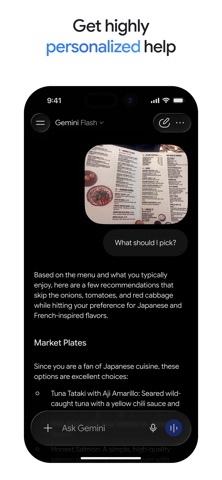
Google Gemini is Google’s cross-platform AI assistant, and setting it up correctly is rarely as simple as tapping “install.” Users searching for a way to download or switch to Gemini frequently run into confusing account handshake errors, unclear permission prompts, or the disorienting loss of legacy voice routines the moment Gemini takes over from Google Assistant on mobile.
Most mainstream coverage of Gemini stops at surface-level marketing overviews or a list of “prompt tricks” to try. What tends to get ignored are the operational failure points that actually determine whether the assistant works the way a user expects — context token exhaustion on long documents, platform-specific permission conflicts between Android and iOS, and the meaningful behavioral differences between the browser sandbox and the native desktop client.
This guide provides a systematic, verified roadmap for deploying, configuring, and mastering Gemini across mobile and desktop environments, with attention to the friction points that determine whether the transition actually goes smoothly.
LEVELZA built this from confirmed store listings and documented platform behavior, not marketing copy.
What Is Google Gemini and How Does It Work?
Google Gemini is a multimodal foundation model family developed by Google DeepMind, spanning lighter “Flash” configurations built for speed and heavier “Pro” configurations built for depth of reasoning. Unlike systems that stitch together separate models for text, images, and audio, Gemini’s architecture is trained to process these input types natively within a single model, which is why it can reason across a screenshot and a paragraph of text in the same query without a translation layer in between.
A second defining trait is that Gemini isn’t limited to what was baked into it during training. Through Search grounding, it can reach into Google’s live information graph to check and supplement its answers against current web content, rather than relying purely on static parameter weights that go stale the moment new information appears. This distinction matters most for anything time-sensitive — pricing, current events, software version behavior — where a model working only from training data is structurally prone to confidently wrong answers.
Core Multimodal Architecture
Because Gemini processes images and text as native input types rather than through a bolted-on optical character recognition step, it interprets a photographed whiteboard diagram, a handwritten note, or a screenshot of an error message with a level of contextual understanding that OCR-then-translate pipelines typically lose. Fine details — arrows, annotations, partial words — are read as part of the same reasoning pass as any accompanying text prompt, rather than pre-processed into flat text first.
Google Ecosystem Deep Linking
Gemini’s other structural advantage is direct semantic access to a user’s own Google account data. Through Extensions, it can be pointed at Gmail threads, Google Docs, Drive folders, and Maps data, treating them as queryable context rather than files that need to be manually opened and read. This is a meaningfully different design from assistants that only work against what’s pasted directly into the chat window.
Latency & Compute Trade-Offs Between Flash and Pro
The split between Flash and Pro isn’t a marketing tier — it reflects a genuine architectural trade-off between response speed and reasoning depth. Flash is optimized for high-frequency, low-latency streaming: short conversational turns, quick summarization, and real-time voice interaction, where a slower but more thorough answer would actually degrade the experience by introducing lag a user notices.
Pro, by contrast, is built to execute multi-step recursive reasoning chains — breaking a complex query into intermediate sub-problems, checking its own intermediate outputs, and revising a working answer before finalizing it. This makes Pro the better fit for tasks like multi-file code review, legal document analysis, or math proofs, where the extra compute cost buys a meaningfully more reliable answer.
In practice, the system routes automatically toward the configuration best suited to a given query’s complexity, though users on paid tiers can often force a specific model when a task’s demands are already known upfront — for instance, explicitly selecting Pro before uploading a lengthy contract for clause-by-clause review, rather than relying on the default routing to detect that complexity itself.
In terms of accessibility, Gemini runs comfortably across a broad span of device tiers rather than demanding premium hardware, and its OS compatibility spans mobile and desktop platforms with a genuinely light installation footprint relative to comparable AI applications.
How to Get Started With Gemini Across Devices
Mobile Setup: Android and iOS Configuration
On Android, setting Gemini as the default assistant is done by holding down the power button (or using the designated corner-swipe gesture on supported devices) and following the on-screen prompt to switch the default assistant app. Once active, “Hey Google” voice triggers and power-button summons are rerouted to Gemini instead of the legacy Assistant.
This switch carries a real trade-off. Some device-level routines built under Google Assistant — specific smart home macros, certain offline device toggles — are still in the process of being ported over, and users who depend heavily on these should check their existing routines after switching rather than assuming full parity on day one. Configuring fallback behavior typically means leaving select routines on Assistant while running general queries through Gemini, which Android currently allows as a hybrid state rather than an all-or-nothing switch.
On iOS, Gemini is available as a standalone app from the App Store, and can also be reached through a toggle inside the Google app itself for users who prefer not to install a second application. The standalone app is the more complete experience, since it exposes the full set of extensions and voice invocation options that the embedded toggle does not.
Desktop Deployment: Windows, macOS, and Web Client
On desktop, users can choose between the native desktop client and the browser-based progressive web app at gemini.google.com. The native client installs a persistent background process capable of system-wide hotkey invocation, while the PWA behaves like any other browser tab — convenient for occasional use, but without the always-available overlay.
Both paths authenticate through standard Google Account sign-in, and support multi-profile switching for users managing separate personal and work Workspace identities. Single sign-on states persist across sessions once granted, so re-authentication is typically only required after an explicit sign-out or a security-related session reset on Google’s end.
Enterprise Multi-Account & Workspace Profile Switching
A recurring friction point for professional users is account conflict between a personal @gmail.com login and a managed Google Workspace identity. When both are signed in simultaneously, Gemini’s desktop client and mobile apps maintain them as fully separate profiles rather than merging them, which means Extensions activated under a personal account — Drive access, Gmail summarization — do not automatically carry over when the active profile is switched to a Workspace identity.
Switching profiles is handled through the account avatar in the top corner of the interface, the same pattern used across other Google products. What catches users off guard is that a Workspace administrator can restrict which extensions are available under a managed account entirely, meaning a feature that works freely on a personal login may be greyed out or missing once the same device is used under a company-managed Gemini deployment. Checking with an organization’s IT policy before assuming feature parity across both account types avoids a wasted troubleshooting cycle.
For users who regularly move between the two contexts — drafting personal notes on a private account, then referencing work email under a Workspace login — keeping both signed in and switching deliberately through the profile selector is more reliable than signing fully out and back in each time, which resets session-specific settings like pinned extensions.
Activating Workspace Extensions (Drive, Gmail, Docs)
Workspace connectivity isn’t automatically active after install. It has to be turned on manually by navigating to Settings → Extensions and toggling on Google Workspace, YouTube, Google Maps, and Google Flights as needed. Each extension is independent, so a user who only wants Gmail and Drive access without exposing Maps or YouTube data can leave those toggles off entirely.
Key Features of Google Gemini
- Native Multimodal Audio & Visual Ingestion: Gemini reads screenshots, schematics, handwritten notes, and voice streams directly, without routing them through a separate third-party OCR or transcription step first.
- Live Google Search Grounding: Responses can be cross-checked against live web sources, surfacing clickable citations that reduce the risk of confidently stated but outdated or fabricated answers.
- Direct Workspace Semantic Interrogation: Using
@Gmailand@Drivesyntax, Gemini can summarize and cross-reference unstructured emails, PDF attachments, and spreadsheets in real time rather than requiring manual copy-paste. - Code Execution & Artifact Sandboxing: An integrated Python sandbox lets Gemini run and test algorithmic logic, generate charts, and verify script output before presenting a final answer.
- Dynamic Context Windows (Flash & Pro): Large document handling allows full-length textbooks, legal contracts, or entire codebases to be parsed within a single prompt rather than split across multiple exchanges.
- On-Device Hybrid Execution (Gemini Nano): On supported hardware, certain tasks — quick summarization, smart replies, some device actions — run locally, improving both speed and privacy for those specific operations.
- Native Image Generation & Editing: Built on Imagen, Gemini can generate original images and apply in-line edits to them through follow-up prompts, without switching to a separate tool.
PRO TIP
Enabling “Gemini Apps Activity” inside the Google Account Privacy Dashboard helps prevent unexpected session expirations that can otherwise interrupt long working sessions. From within an active conversation, sensitive research or drafted content can also be exported directly to Google Docs or a Gmail draft with a single click, avoiding a manual copy-paste step that risks losing formatting.
TECHNICAL WARNING
Unofficial .exe or .pkg “Gemini desktop” installers found on third-party download repositories are not distributed by Google and frequently bundle session-stealing malware or credential loggers disguised as a legitimate client. The only verified installation paths are the official gemini.google.com web client, the Google Play Store, and the Apple App Store — anything outside those channels should be treated as untrusted by default.