
Getting started with Microsoft Teams often feels heavier than expected. It is positioned as an everyday communication hub, yet new users regularly hit account confusion between personal Microsoft accounts and organization tenants, plus resource strain during busy video calls.
Most download summaries skip this setup friction. They repeat promotional talking points and never explain how the current client handles identity switching, local cache, and cross-platform syncing.
LEVELZA verified this breakdown against documented client runtime behavior, official store distribution builds, and standard enterprise deployment workflows. This guide covers what to understand before installing, configuring, and relying on the software across your devices.
What is Microsoft Teams?
Microsoft Teams is a collaboration platform that merges persistent chat, video meetings, calling, and shared file storage in a single application. It is built on top of Microsoft 365 cloud services, so conversations, documents, and meeting records all live in the same connected environment.
It runs as a desktop client on Windows and macOS, as a mobile app on Android and iOS, and as a browser-based web client. A widely deployed enterprise solution, it also serves schools, community groups, and families through a free consumer tier.
The Transition to the Edge WebView2 Desktop Architecture
The older desktop client was built on the Electron framework, which bundled a full copy of a Chromium browser inside the application. Every instance carried its own heavy runtime, and that overhead showed up as high idle memory use and slow launches.
The current client replaces Electron with Microsoft’s Edge WebView2 runtime. Instead of shipping its own browser engine, the app borrows a component that the operating system already maintains.
That change has practical effects. Idle background memory use drops noticeably, installation is lighter and faster to deploy across many machines, and the app launches and joins meetings more quickly than legacy releases.
Native window management also improves on both Windows and macOS. Pop-out chats, meeting windows, and multi-monitor layouts behave more like ordinary desktop applications and less like a web page in a frame.
The Organizational Structure: Tenants, Teams, and Channels
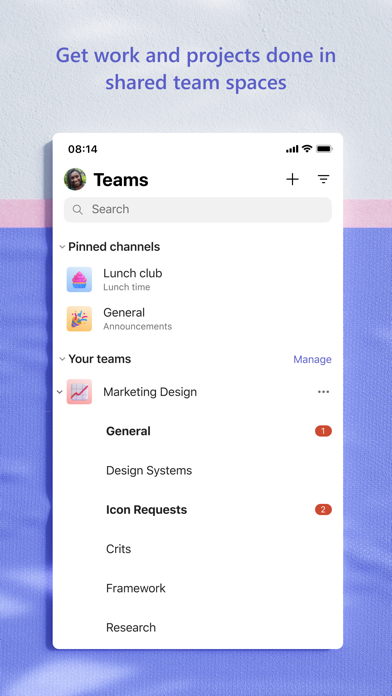
Everything in Teams is partitioned by tenant, the organization-level container tied to a Microsoft 365 subscription. Inside a tenant, communication splits into three layers: direct messages, group chats, and channels.
A direct message is a private 1-on-1 conversation. A group chat extends that to a handful of explicitly added people, and each participant sees only what was shared with that chat.
Channels live inside a Team, which is a membership group with its own owners and members. Teams supports three channel tiers:
- Standard channels: visible to every member of the parent Team, suited to ongoing project or department discussion.
- Private channels: restricted to a chosen subset of members, used for sensitive work such as budgets or personnel planning.
- Shared channels: accessible to people outside the parent Team, including external collaborators, without requiring them to join the whole Team.
Each tier ties into document storage. Files shared in a standard channel land in a SharePoint document library attached to the Team. Private and shared channels get their own separate storage, so access rights for files follow the channel rather than the wider group.
Knowing this mapping prevents a common mistake. Posting a file in the wrong channel type can expose it to the wrong audience or hide it from the people who need it.
How to Get Started with Microsoft Teams
The first-run experience decides whether the software feels manageable or overwhelming. Three areas cause most early friction: which account to use, how hardware is configured, and how notifications are set up.
Account Provisioning and Identity Selection
Teams accepts two kinds of identity. A personal Microsoft account gives access to the free consumer edition, aimed at family, friends, and small communities.
A Work or School account belongs to a Microsoft 365 tenant managed by an organization. It provides access to the full set of organizational features, including channels, governance policies, and compliance controls.
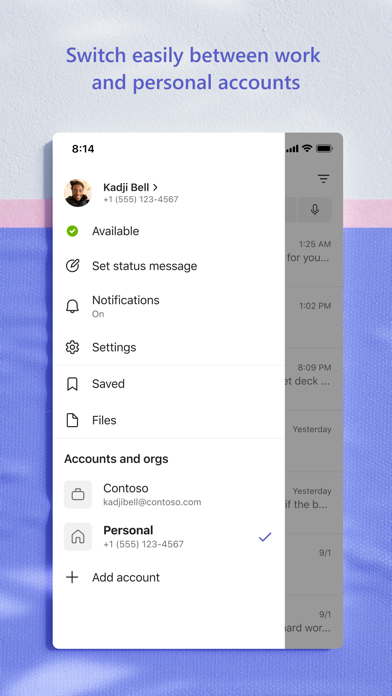
Signing in with the wrong identity is the most common setup error. A person with both account types may land in the wrong environment and assume their team or chats have disappeared.
Use the account picker in the top corner of the client to check which identity is active before assuming anything is missing. The mobile apps offer the same switch under the profile menu.
Guest access covers people who do not belong to the organization’s tenant. An administrator or team owner invites an external person by email, and that person is added as a guest through Microsoft Entra ID, the identity service formerly called Azure Active Directory.
Guests receive a limited set of permissions. They can chat, join meetings, and open files shared with them, but they cannot see the wider directory or change tenant-level settings.
Audio, Video, and Peripheral Calibration
Check your hardware before the first live meeting, not during it. Open Settings > Devices and confirm the default microphone, speaker, and camera are the ones you actually intend to use.
Laptops with docks, headsets, and external webcams often have several input options, and the wrong default is a frequent cause of “nobody can hear me” moments.
Use the built-in test call feature on the same screen. It plays back a recording of your voice so you can confirm both the input and output path work.
Teams also includes AI-based noise suppression, found in the same Settings > Devices area. Higher suppression levels filter out keyboard clatter and background chatter, though aggressive settings can clip quiet speech, so test the level you choose.
Validate the camera view and framing before joining. The pre-join screen shows a live preview and offers virtual backgrounds and blur, which helps in shared spaces.
Initial Workspace Configuration and Notification Hygiene
Notification overload is the main reason people abandon Teams or start ignoring it. Tune alerts in the first session instead of living with the defaults.
Go to Settings > Notifications and activity and adjust delivery per category. Setting a busy channel to show only mentions, rather than every message, cuts interruptions sharply without losing direct requests.
Custom channel notifications let you hold different rules for different spaces. Keep full alerts on the channels tied to your daily work and mute the rest.
On mobile, configure quiet hours or quiet time so evening and weekend alerts stop. Without it, the phone app pushes every banner regardless of the time.
The Activity feed is the best triage tool. Its filter separates direct @mentions and replies to you from broadcast notifications, so you can clear what needs action first and skim the rest later.
Key Features of Microsoft Teams
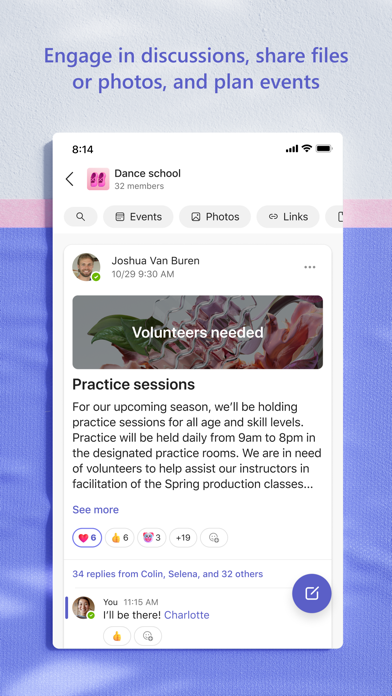
- Persistent Threaded Conversations and Direct Messaging: Conversations stay searchable and organized in threads instead of disappearing into a single stream. Rich text formatting, code snippets, reactions, and inline message translation support clear communication, while retention policies linked to organizational governance control how long messages are kept.
- High-Capacity Video Conferencing and Collaborative Meetings: Meetings range from quick 1-on-1 huddles to large webinars and town halls. Dynamic layouts, Together Mode, digital whiteboarding, and breakout room orchestration give hosts real control over how a session runs.
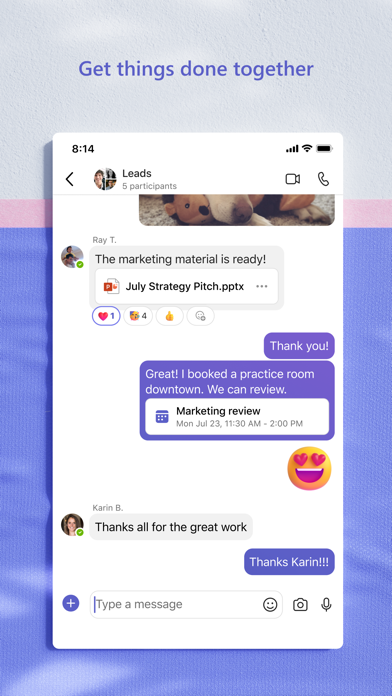
- Deep Native Microsoft 365 Co-Authoring: Word, Excel, and PowerPoint files open inside the Teams interface, where several people edit the same document at once. The files sit in SharePoint document libraries behind the scenes, so version history and permissions follow the file wherever it is shared.
- Intelligent Meeting Recaps and Copilot AI Integration: Meetings can produce searchable transcripts with timestamped speaker attribution and automated follow-up tasks. Enterprise subscribers with the relevant licensing can also query meeting content conversationally instead of rewatching recordings.
- Extensive App Integration and Automated Workflows: Third-party tools such as Jira, GitHub, and Trello connect directly to channels. The Microsoft Power Platform adds low-code automation, so alerts, approvals, and custom bot interactions can trigger without leaving the chat.
- Enterprise-Grade Compliance and Security Framework: End-to-end encryption is available for 1-on-1 calls, and administrators can enforce multi-factor authentication. Data loss prevention filters and granular conditional access policies, managed through Microsoft Intune and Entra ID, let organizations control which devices and locations can reach company data.
Pro Tip: Managing Bandwidth and Performance on Resource-Constrained Machines
When running dense screen shares or multi-participant video meetings on a lightweight laptop, open Settings > General and look for the Disable GPU hardware acceleration option if you notice stuttering or cooling fan spikes. The exact location of this option can differ between client versions.
On a weak connection, turning off incoming participant video from the meeting’s More (…) menu frees downlink bandwidth. That keeps audio and presentation streams stable and reduces the chance of dropped calls.
Warning: Third-Party Installers and Token Hijacking Vectors
Only download client packages directly from Microsoft’s verified domains or the official app stores. Third-party repositories sometimes repackage installers with credential-scraping code aimed at session authentication tokens stored on the device.
Never grant consent to unverified Teams apps or bots that request offline_access or broad directory read permissions unless your network administrator has explicitly approved them. Those permissions allow persistent access to organizational data long after the original session ends.