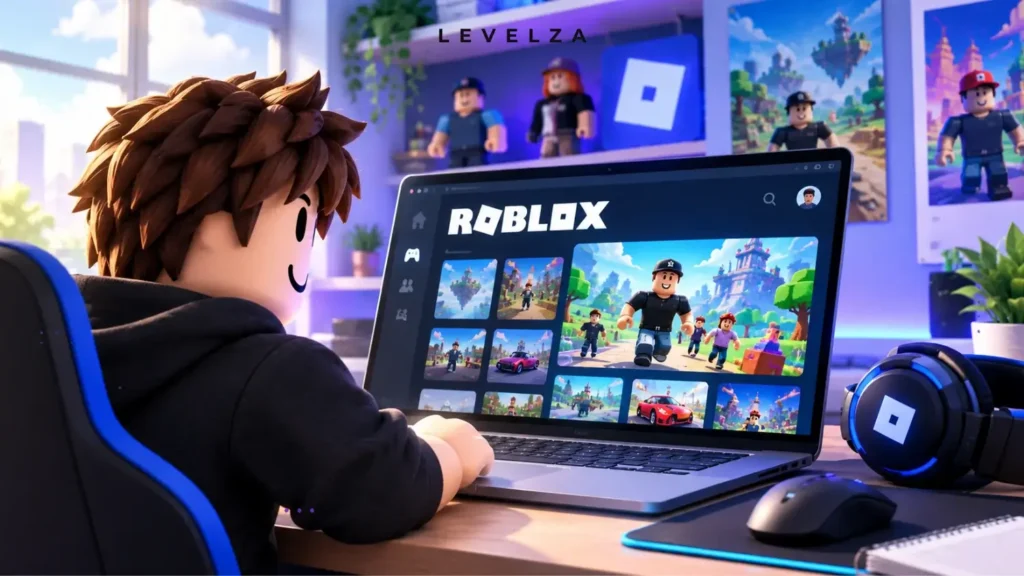
Learning how to play Roblox starts with understanding what the platform actually is. It isn’t a single linear game, but an expansive distribution engine hosting millions of independently developed 3D worlds under one account system.
First-time users typically struggle with three things: whether to launch from a browser or a client, wildly inconsistent control schemes between genres, and pervasive monetization prompts scattered across different experiences.
Mainstream guides tend to gloss over the setup precautions that actually protect a new account, leaving newcomers vulnerable to session hijacking or stuck with an uncalibrated camera that makes every game feel clumsy. LEVELZA provides a verified, end-to-end framework here covering account security, control calibration, and safe experience curation, starting from the full Roblox platform overview.
QUICK SUMMARY
- Prerequisites: A compatible desktop (Windows/macOS), mobile device (iOS/Android), or modern console; a stable internet connection; a valid email address for multi-factor security.
- Estimated Setup Time: 5 to 10 minutes from registration to launching your first experience.
- Core Takeaway / End Result: A fully secured user profile, a calibrated desktop or mobile control scheme, a custom avatar baseline, and direct access to curated, verified multiplayer experiences.
Prerequisites Checklist
- Hardware Baseline: Any modern 64-bit operating system. Roblox maintains an exceptionally accessible hardware floor that runs smoothly even on integrated graphics rather than a dedicated GPU.
- Network Integrity: A stable, low-latency broadband connection. Wireless setups should preferably use a 5 GHz band to reduce in-game packet drops during fast-paced experiences.
- Credential Security: A dedicated, private email address not shared on public forums, paired with an authenticator app (TOTP) for two-step verification.
- Input Peripherals: A standard mouse and keyboard for desktop play, a calibrated touchscreen for mobile, or a standard gamepad controller for console integration.
How to Play Roblox: Step-by-Step Walkthrough
Step 1: Register an Account with Hardened Security Settings
- Navigate to the official signup portal and enter an accurate birth date. Setting an age under 13 permanently locks strict automated chat filtering that cannot later be changed without ID verification.
- Choose an anonymous username that reveals no real-world personal information.
- Once signed in, navigate to Settings (Gear Icon) > Security and enable Authenticator App (TOTP) as the primary two-step verification method.
- Set up an Account PIN under the Parental Controls tab to lock critical profile and billing changes behind a 4-digit code.
Step 2: Deploy and Initialize the Native Runtime Client
- Select any experience from the catalog and click the large green Play button.
- The browser prompts a download of
RobloxPlayerLauncher.exe(Windows) orRoblox.dmg(macOS). Run the installer. - Allow the bootstrapper to unpack core asset binaries into your user profile directory at
%localappdata%\Roblox. - When prompted by the browser, check Always allow [Roblox URL] to open links associated with this app, then confirm. The native player launches automatically.
Step 3: Configure Your Avatar in the Universal Editor
- Open the Avatar Editor from the left navigation drawer.
- Use the free starter catalog under Head & Body and Clothing to personalize the 3D model.
- Under the Scale sub-tab, choose between classic R6 (a blocky, 6-joint skeleton with legacy physics) and R15 (an articulated 15-joint skeleton compatible with layered clothing). Some competitive game modes enforce one body type over the other.
Step 4: Calibrate Core Movement, Camera Modes, and Shift Lock
- Join an open sandbox experience and press Esc to open the in-game settings panel.
- Set Camera Mode to Classic (manual rotation via right-click hold) or Follow (the camera automatically tracks movement).
- Toggle Shift Lock Switch to On. This locks the camera directly behind the character with an aiming reticle, converting default floaty movement into precision directional strafing — essential for obstacle courses and combat-focused experiences.
- Calibrate Mouse Sensitivity to a lower setting to prevent jarring viewport snapping during fast navigation.
- On mobile, open the in-game settings menu and choose between Classic Thumbstick, a fixed on-screen control anchored to one corner, and Dynamic Thumbstick, which spawns wherever the thumb first touches the screen. Dynamic mode generally suits faster-paced genres, while Classic mode gives more consistent muscle memory for precision obbies.
Step 5: Evaluate and Join Curated Experiences Safely
- Open the Discover tab and evaluate candidate games by checking their active player count, upvote ratio, and how recently the server was updated.
- Read each experience’s description to understand its genre mechanics — RPG, Tycoon, Simulator, Obby, and Battle Royale all play very differently.
- Avoid clone experiences that use misleading promotional thumbnails to solicit clicks or micro-transactions, then click Play to enter the live shard.
Step 6: Master In-Game Social Tools and Player Moderation
- Press / (forward slash) on PC, or tap the chat bubble icon on mobile, to open text chat.
- Platform auto-moderation automatically censors profanity, personal identifiers, and off-site URLs with hash symbols.
- To report disruptive players or exploiters, press Esc > Report, select the offending username, choose the specific infraction category, and submit the incident to platform moderators.
TIP — OPTIMAL PERFORMANCE AND NAVIGATION
Press Esc > Settings, switch Graphics Mode from Automatic to Manual, and lower the slider to level 3–5 if frame drops occur in resource-heavy worlds. This reduces render distance while sustaining a smoother frame rate.
If lag or a crowded lobby becomes an issue, open the experience details page in a desktop browser, expand the Servers tab, and manually join an instance with fewer concurrent players or a stronger local ping.
Common Mistakes to Avoid
- Trusting Third-Party “Free Robux” Generators: Robux can never be generated through an external website. Any portal requesting login credentials or survey completions is an identity-theft phishing trap.
- Sharing Account Cookies (
.ROBLOSECURITY): Never copy browser inspect strings or run script bookmarks against an account. A stolen session cookie bypasses both the password and two-step verification entirely. - Ignoring Server Regional Latency: Joining friends hosted on overseas data centers without checking ping first can produce severe input delay and character rubber-banding.
- Prematurely Purchasing Micro-Passes: Buying developer products or game passes in an unverified experience before confirming it’s actively maintained risks spending Robux on a game riddled with bugs.
- Falling for Deceptive In-Game Gamepass Popups: Some unverified obstacle courses place predatory developer-product prompts directly over jump paths or checkpoint triggers, timed to bait an accidental purchase mid-run rather than a deliberate one.
If a client repeatedly drops during a server loading screen with a persistent handshake error, follow the dedicated technical walkthrough for Roblox Error Code 279 to reconfigure firewall and DNS settings.