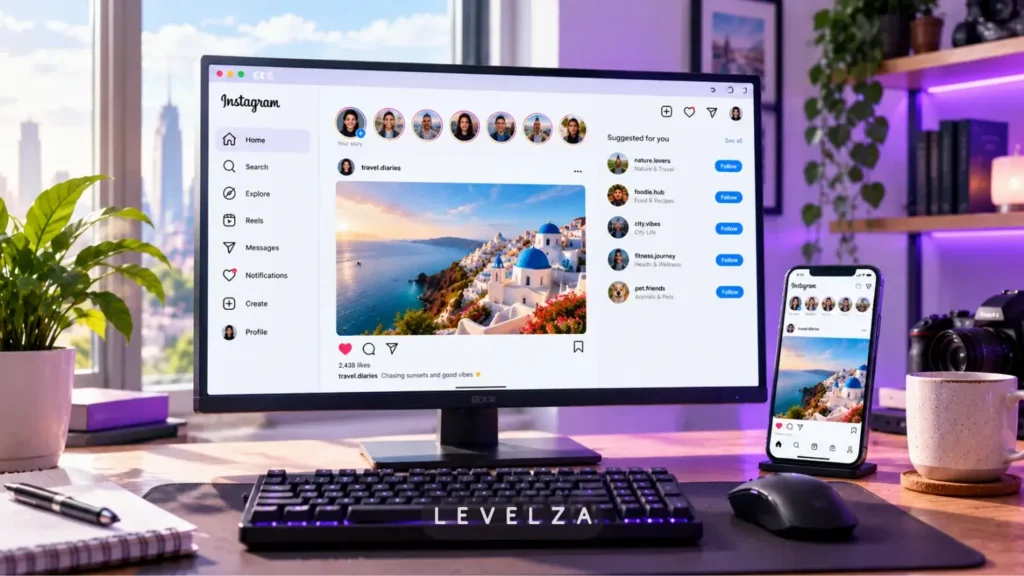
Knowing how to use Instagram on PC removes the need for workarounds. The official website and its installable desktop version handle browsing, posting, and messaging directly.
Many creators and social media managers still believe they need Android virtualization software such as BlueStacks, or browser tricks that spoof a phone, just to publish from a computer. That belief is outdated, because Instagram now works as a Progressive Web App with a full desktop interface.
Generic guides keep circulating old workarounds. They skip native Progressive Web App installation, leave out keyboard navigation for Reels, and ignore how direct messaging works on a computer.
This LEVELZA guide is a zero-emulation manual for navigating feeds, uploading photos at the right aspect ratios, and managing several accounts from Windows or macOS.
LEVELZA QUICK SUMMARY
- Prerequisites: A modern browser (Chrome, Edge, Safari, or Firefox), or Windows 10/11 with access to the Microsoft Store. You also need your Instagram login details.
- Expected Execution Time: 2–4 minutes for setup, login, and desktop configuration.
- End Result: Desktop access for posting high-quality photos and Reels, handling direct message conversations, and navigating content with keyboard shortcuts.
Prerequisites Checklist
Confirm each item below before starting. Most desktop problems trace back to one of them.
- A supported browser. Google Chrome, Microsoft Edge, Mozilla Firefox, and Apple Safari all work. Keep the browser on a recent release, because video playback and graphics features depend on current support.
- A supported operating system. The Microsoft Store version needs a current Windows 10 or Windows 11 build. On macOS, use Safari or a Chromium-based browser.
- A stable broadband connection. Video uploads are large, and an unstable connection can cause an upload to time out partway through.
- Your login details. Have your username and password ready, plus access to your two-factor method if you use one.
- Prepared files, if you plan to post. Export photos as JPEG or PNG in a 1:1 square or 4:5 vertical ratio. Export Reels as MP4 or WebM with H.264 video and AAC audio in a 9:16 vertical ratio.
Preparing files in advance is where desktop gives you the most control. The same checklist applies whether you use the browser or the installed app.
Step-by-Step Walkthrough: How to Use Instagram on PC
The six steps below run in the order most people need them. Steps 1 and 2 cover access, step 3 covers browsing, steps 4 and 5 cover publishing and messaging, and step 6 covers scheduling.
Step 1: Deploying the Browser Client or Microsoft Store PWA Container
You have two official ways to start, and neither involves an emulator.
- Browser route: Open your browser and go to instagram.com. No installation is needed.
- App-style route: Open Microsoft Store, search for Instagram, confirm the publisher, and select Get.
A Chromium-based browser also offers its own install option. In Chrome or Edge, open instagram.com and look for the install icon in the address bar, or find the install entry in the browser menu.
The installed version runs in its own isolated window. It can be pinned to the taskbar, which keeps social browsing apart from a crowded set of browser tabs.
Step 2: Authenticating and Configuring Multi-Account Switching
- Open the login screen and enter your username and password. If your account is linked to Facebook, a Log in with Facebook option may appear.
- Complete any two-factor prompt.
- Once signed in, click your profile avatar in the left sidebar or at the bottom of the menu.
- Select Switch accounts to add another profile.
Instagram limits how many accounts you can link at once. Within that limit, switching takes one click, which suits social media managers who handle several brand profiles. Menu labels and positions change between versions, so look for the closest equivalent if yours differs.
Step 3: Navigating Feeds, Stories, and Reels via Keyboard Hotkeys
Mouse-wheel scrolling relies on the browser’s scroll-snapping, which can overshoot or stutter between items. Keyboard shortcuts step through content one item at a time and avoid that problem.
- J or Down Arrow: next post or Reel
- K or Up Arrow: previous post or Reel
- L: like the current post or Reel
- M: mute or unmute audio
- C: open the comment drawer
- Esc: close a Story viewer or photo lightbox
If a shortcut does not respond, click an empty area of the page once to give it keyboard focus. Shortcuts do not fire while a text field is active.
Combining J, L, and M lets you browse with almost no mouse movement. That helps during long sessions and reduces strain on the wrist.
Step 4: Uploading Master-Quality Photos and Reels from PC Storage
Desktop uploading suits creators who finish their edits in a photo or video editor. You publish a prepared file directly from storage.
- Click the Create (+) button in the left navigation sidebar.
- Choose Post or Reel.
- Drag and drop your file into the window, or browse for it.
- Use the crop tool to choose an aspect ratio, such as Original, 1:1, or 4:5.
- Apply any built-in adjustments, such as brightness, contrast, or saturation.
- Write your caption, then add alt text under Accessibility so the post is usable with screen readers.
- Click Share.
The platform re-encodes every upload on its servers, so the published file will not match your source bit for bit. A clean, high-quality master simply gives that process better material to work with.
Step 5: Managing Direct Messages and Customer CRM on Desktop
Click Messages in the sidebar to open your inbox. The desktop layout shows conversations in a wider view than a phone allows.
A full keyboard makes long replies much faster, which matters for businesses that answer customer questions through direct messages. You can also share files straight from desktop folders, and you can filter your inbox to find unread conversations.
Features such as voice notes and message filters can differ by account type and app version. Check which options appear in your own inbox before you build a workflow around them.
Step 6: Scheduling Posts via Meta Business Suite Integration (Optional)
Scheduling is not part of the standard Instagram web interface. Professional creators and businesses can use Meta’s Business Suite instead.
- Go to business.facebook.com while signed in to the account that manages your Instagram profile.
- Make sure your Instagram account is connected and set up as a professional account.
- Open the Planner tool.
- Draft a post or Reel, preview how it will look, and choose a publish date and time.
Business Suite lets you queue content ahead of time without a third-party scheduling tool. The allowed scheduling window and the available features can change, so confirm them inside the tool before you plan a long content calendar.
Pro Tips for Desktop Power Users
PRO TIP: Control Your Crop and Protect Fine Detail
Use the 4:5 vertical ratio. A 4:5 frame takes up more screen space in the feed than a square, which gives the image more presence on both desktop and mobile. Crop photos to that ratio in your editor, such as Photoshop or Lightroom, before uploading. This prevents the app from applying its own automatic crop and choosing the wrong focal point.
Keep your master file clean. Uploading a finished file from desktop skips the compression that phones apply while preparing media from a camera roll. Sharp typography and fine textures in graphic carousels tend to keep cleaner edges as a result.
Combine both habits by exporting one final file at the right ratio, then uploading it in a single pass.
Common Mistakes to Avoid
Desktop users tend to repeat the same three errors. Each is easy to avoid once you know about it.
1. Expecting Mobile-Exclusive Story Stickers on Desktop Web
The desktop interface is built for viewing Stories and publishing finished posts and Reels. It does not include the interactive Story widgets that rely on touch input, such as polls, quizzes, music stickers, and link stickers. It also lacks the AR camera filters.
Creators who plan Story content around those tools should build and post them from a phone. Use desktop for the files you have already prepared.
2. Wasting Resources on Bulky Android Emulators
Virtualization suites such as BlueStacks are unnecessary for Instagram. They use far more memory and processing power than the browser does, they often introduce input lag, and they run a full mobile operating system just to show an interface the web client already provides.
Emulated environments can also trigger security checks, which may lead to verification prompts or account lockouts. The official web client and the installed app use a small share of system resources by comparison, and they are the supported route.
3. Ignoring Browser Hardware Acceleration
Stuttering video when you watch Reels or scroll through high-resolution carousels is often traced to disabled GPU acceleration in the browser. The video player then falls back to software rendering, which struggles with smooth playback.
In Chrome, open Settings > System and turn on Use graphics acceleration when available. In Edge, find the same option under Settings > System and performance. Restart the browser afterward, and keep your graphics drivers up to date.
Acceleration can occasionally cause its own problems on certain drivers. If the browser starts closing unexpectedly, or you are signed out without warning, see the guide for when Instagram keeps crashing for a full diagnostic path.