

If you want to Download Instagram safely, the official routes are the Google Play Store, the Apple App Store, and a browser-based desktop version. Each route fits a different device, and each handles media quality and permissions differently.
The search results for this app are full of traps. Some users enroll in unstable Android beta channels and hit boot crashes. Others lose photo sharpness without knowing a hidden compression setting is responsible. Many also land on websites offering modified APKs such as Instander or GBInstagram, which promise features like ghost story viewing and deliver account risk instead.
Thin download directories make this worse. They link to broken external mirrors and never explain how to install the browser-based Progressive Web App, how desktop uploading works, or which quality toggles matter.
This LEVELZA dossier is compiled from authenticated store manifests, verified platform behavior, and documented architecture. It does not rely on vendor marketing copy.
What is Instagram? Architecture & Visual Ecosystem
Instagram is a multi-format social platform that began as a photo-sharing app and now runs several distinct media systems under one account. Understanding how those systems fit together explains most of what the app does, and most of what goes wrong when it behaves unexpectedly.
The Unified Media Stack: Feed, Stories, Reels, and Messaging
Four formats share one profile, and each serves a different purpose.
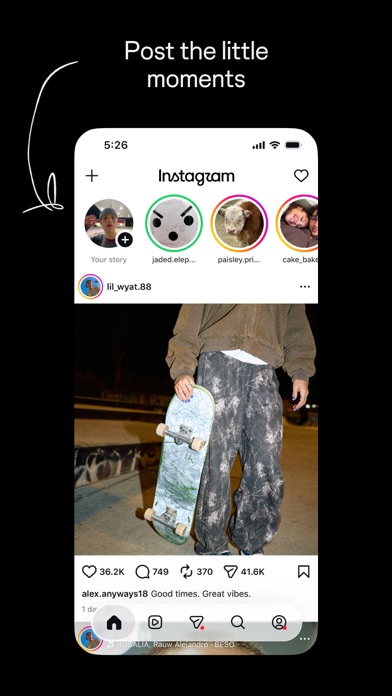
Feed posts are permanent and curated. They live on the profile grid, support single images or multi-image carousels, and function as a public portfolio.
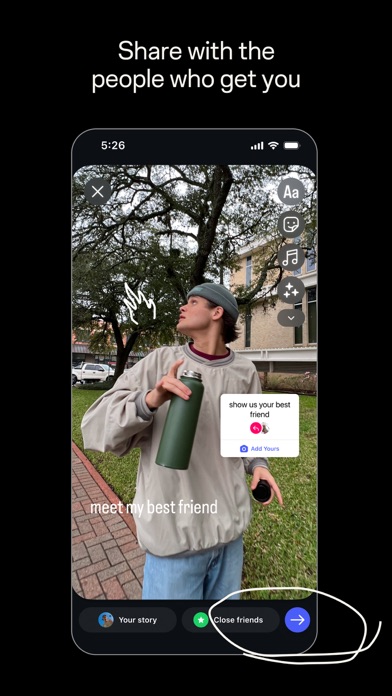
Stories are ephemeral. They disappear after a day, which makes them suited to casual updates, polls, and behind-the-scenes moments that do not belong on a permanent grid.
Reels are full-screen vertical videos built for discovery. They reach people beyond a creator’s followers, which neither Feed posts nor Stories do to the same extent.
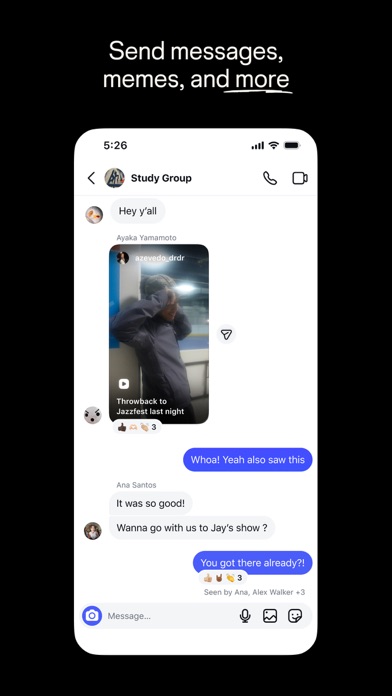
Direct messaging is the private layer. It carries text, voice notes, vanishing photos, and shared posts, and it supports opt-in end-to-end encrypted chats.
The practical result is that one app replaces several. A person can maintain a portfolio, share daily updates, publish short video, and hold private conversations without switching platforms.
Algorithmic Architecture: Relationship Graph vs. Reels Discovery Engine
Instagram does not use a single recommendation system. It runs two with different goals.
The primary Feed and Stories prioritize the relationship graph. Past interactions drive ranking, so accounts you message often, view regularly, or mark as Close Friends appear first.
Reels works differently. It behaves like an interest-based discovery loop, ranking videos by watch-time retention, replays, shares, and audio attribution. A Reel from an account you have never seen can appear if the viewing signals are strong.
This split has direct consequences. Posting a photo mostly reaches people who already know you, while posting a Reel can reach strangers. Creators who understand the difference choose formats according to whether they want depth with an existing audience or reach beyond it.
For ordinary users, it explains why the Feed feels personal and Reels feels like a separate app. Each tab answers a different question: who matters to you, and what might interest you.
Cross-Platform Architecture: Mobile Native vs. Desktop Progressive Web App
The Android and iOS apps are the full clients. They have direct access to camera hardware, augmented reality effects, local media caches, and the complete set of interactive Story tools.
The desktop version is a Progressive Web App built on the same site you reach in a browser. It can run in its own window with taskbar integration, which makes it feel closer to an installed program.
That desktop client has a negligible storage footprint compared with the expanding media cache on a phone. It is well suited to keyboard-driven feed navigation, desktop messaging, and publishing finished files.
It does not replace the mobile app for creation. Camera-based effects and interactive Story stickers remain mobile features, so desktop works best for consumption, messaging, and uploading content you have already prepared.
How to Download Instagram and Set Up Your Account
Every method below uses an official source. Avoid any site that offers a standalone installer or modified file for Instagram, because those downloads are the main carriers of tampered builds.
Installing on Android and iOS Mobile Devices
Check that your device runs a reasonably modern operating system build. Older releases may not show the app in the store at all, and the listing will not offer an install button.
Free up some storage first. The app itself is modest at install time, but its media cache grows steadily with use.
On Android:
- Open the Google Play Store.
- Search for Instagram and confirm the publisher is Instagram, from Meta.
- Tap Install and wait for the download to finish.
- Open the app and respond to the permission prompts.
On iPhone or iPad:
- Open the App Store.
- Search for Instagram and confirm the publisher name.
- Tap Get, then authenticate with Face ID, Touch ID, or your Apple Account password.
- Open the app and respond to the permission prompts.
Permissions deserve a deliberate choice. The app asks for camera, microphone, and photo library access, and you can grant each one only when needed.
On iOS, you can give access to selected photos instead of the whole library. That limits what the app can read while still letting you post what you choose.
Avoid enrolling in the Android beta testing channel unless you accept instability. Beta builds are prerelease software, and users report boot crashes and broken features in them. The standard Play Store release is the stable option.
Deploying Instagram on Windows and macOS Desktop Environments
The official desktop routes all lead to the same web client, packaged in different ways.
The first is the browser version at instagram.com. It needs no installation and works in current versions of Chrome, Edge, Firefox, and Safari.
The second is the Microsoft Store listing on Windows, which wraps the web experience in its own window with taskbar pinning. Confirm the publisher before you install.
The third is browser-based PWA installation. In Google Chrome or Microsoft Edge, open instagram.com and use the install option in the address bar or browser menu. This is the simplest method for a dedicated window on macOS.
On macOS, you can also use the site directly in Safari or a Chromium-based browser. Desktop-class installation options vary by browser, so use the one you already trust.
Do not install any executable that calls itself “Instagram for PC” outside these routes, and treat unofficial desktop viewer extensions with suspicion. The official desktop experience is a browser or a PWA, and nothing else is needed.
Initial Account Provisioning and Privacy Safeguards
After the first launch, spend a few minutes on configuration. The defaults favor openness, and several important settings are off until you change them.
- Enable two-factor authentication. Open Profile > Settings and privacy and find the account security section. An authenticator app is stronger than SMS, because text messages can be intercepted through SIM-swap attacks.
- Choose account visibility. Decide between a public and a private profile before you post. A private account limits who can see your content and requires approval for new followers.
- Build a Close Friends list. This lets you share Stories with a chosen group instead of every follower, which suits personal updates.
- Review message and tag controls. In Settings and privacy, look for options that limit who can message you, mention you, or tag you.
- Turn on Upload at highest quality. Open Profile > Settings and privacy > Media quality and enable Upload at highest quality. Without it, the app can downsample photos and Reels on slower cellular connections to save bandwidth.
Menu names change between app versions. If a label differs on your device, search the settings screen for the closest equivalent.
The quality setting matters most for anyone who posts photos regularly. The downsampling happens silently, so the first sign is usually a post that looks softer than the original.
Together, two-factor authentication and the quality toggle cover the biggest risks at setup. One protects the account itself, and the other protects what you publish.
Key Features
- Curated Visual Feed and Carousels: High-resolution photo sharing with support for square, vertical, and horizontal aspect ratios, multi-image carousels, and color-grading filters.
- Ephemeral Stories and Interactive Stickers: Temporary posts that expire after a day, with polls, question boxes, countdown timers, music overlays, and location tags.
- Algorithmic Short-Form Reels: A full-screen vertical video engine with speed controls, audio stitching, green-screen effects, and automatic caption transcription.
- Direct Messaging and End-to-End Encryption: Private channels for text, vanishing photos, and voice notes, with opt-in end-to-end encrypted chats.
- Broadcast Channels and Community Hubs: One-to-many messaging streams where creators share updates, voice memos, and polls directly with followers.
- Native Camera AR Studio and Face Filters: A hardware-accelerated effects engine for real-time video transformation, available in the mobile camera.
- Integrated Commerce and Creator Marketplace: Product tagging in posts and Reels, affiliate commission tracking, and tools for brand sponsorship collaboration.
The carousel format deserves attention from anyone who posts photos. A single post can hold a sequence of images, so one upload can tell a longer story without filling the grid.
Broadcast Channels solve a different problem. They give creators a way to reach followers directly without routing every update through the feed algorithm, which can bury posts.
PRO TIP — Preserve Upload Quality
Instagram compresses media to keep playback fast on mobile networks. When the quality setting is off, the app can silently downsample photos and Reels on a slower cellular connection.
Open Profile > Settings and privacy > Media quality and enable Upload at highest quality. This tells the app to publish files at the highest resolution the platform allows, even when the connection is weak.
The setting uses more data and makes uploads slower, so switch it on while connected to Wi-Fi if you are watching your data allowance. Menu labels vary by version, so look for the equivalent entry if yours differs.
ARNING — Avoid Modded Clients and Unofficial Tools
Unauthorized apps and modified APKs, including Instander, GBInstagram, and unofficial desktop viewer extensions, are not authorized builds. They often advertise features such as anonymous story viewing or extra customization.
Documented risks include account suspension for automated scraping, session token theft, and permanent loss of accounts protected by multi-factor authentication. A tampered client can read whatever you type into it, including your login details.
Install only from the Google Play Store, the Apple App Store, the Microsoft Store, or the official website.


