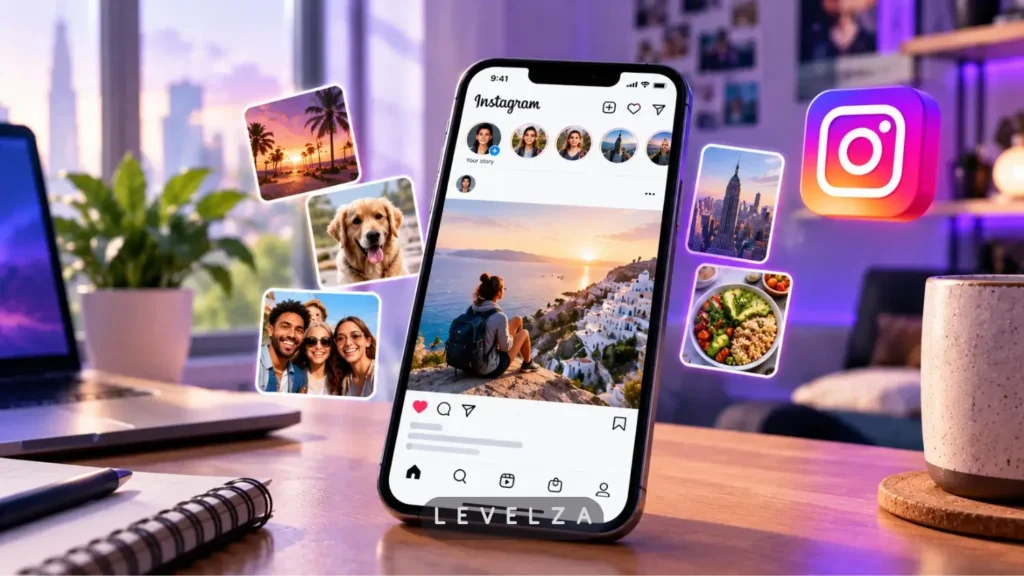
This Instagram review begins with a change of identity. The app was once a digital photo album for close friends, and it is now a hybrid of video discovery, paid verification badges, sponsored shopping content, and private messaging.
Most reviews miss what that shift means. They rate filter aesthetics or complain about too many Reels, without explaining how the two recommendation systems work, why photo quality differs between phones, or what the desktop version actually offers.
This LEVELZA evaluation measures algorithmic balance, image compression, device footprint, and creator monetization trade-offs. It is based on documented platform behavior, not vendor marketing claims.
Core Usage Experience: Comprehensive Instagram Review
Instagram is best judged on three layers: how the feed balances people against recommendations, how capable the creation tools are, and how well the messaging layer works. Each is evaluated below.
Algorithmic Duality: Close Friends Feed vs. Reels Discovery Loop
The app runs two systems with different goals. The main feed tries to preserve personal connections and ranks content by past interactions, so people you message and view often tend to appear first.
The Reels tab works as an interest-based recommendation engine. It ranks videos by watch time, replays, and shares, and it regularly shows content from accounts you have never followed.
The split is a strength and a source of friction. A user gets a personal feed and a discovery feed in one app, but suggested posts increasingly appear in the main feed too.
Control over that noise exists, and it is easy to overlook. Tapping the Instagram logo at the top of the home screen opens a feed switcher with Following and Favorites views.
Those views show only accounts you choose, with suggestions removed. Menu labels change between versions, so look for the equivalent options.
Native Creative Studio: Photo Carousels, Stories, and Reels Editing
Carousels are the strongest storytelling format here. One post can hold a sequence of images, which suits tutorials, travel sets, and before-and-after comparisons without crowding the profile grid.
Stories add interactivity. Polls, question boxes, countdown timers, and music overlays turn a passive update into a two-way exchange, which tends to raise reply rates compared with plain posts.
The Reels editor covers trimming, speed changes, audio stitching, and automatic captions. For quick clips, it is sufficient and keeps the whole workflow inside the app.
Dedicated editors such as CapCut or Premiere Rush still win for layered projects, precise timing, and reusable templates. A practical split is to use the in-app editor for fast, casual clips and an external tool for polished work.
Social Graph & Messaging Infrastructure: DMs and Broadcast Channels
Direct messaging is where Instagram has quietly become a business tool. It handles text, voice notes, shared posts, and vanishing photos, and it supports opt-in end-to-end encrypted chats.
For businesses, the inbox doubles as a customer channel. Inquiries arrive from people who already follow the brand, and tools for organizing and answering them sit within the same app.
Broadcast Channels address a different problem. They let creators send one-to-many updates, voice memos, and polls to followers without depending on feed ranking to surface them. The trade-off is that the format is one-directional, so it works best for announcements.
Performance, Stability & Device Overhead
The app is responsive in daily use and heavy to maintain. Two issues stand out: cache growth and uneven image quality across operating systems.
Playback Fluidity and Cache Storage Accumulation
Scrolling feels fluid on modern devices, including high-refresh-rate displays, because the app preloads upcoming Reels and images. That preloading is why playback starts quickly.
The cost is a media cache that grows steadily with use. After heavy Reels viewing, the app’s local footprint is noticeably larger than a text-first app’s, and storage-constrained phones can slow down as free space shrinks.
Periodic maintenance fixes most of it. On Android, clear the cache under Settings > Apps > Instagram > Storage & cache.
On iPhone, offloading the app clears temporary files while keeping its data. Draft content stays safest when you avoid clearing all app data.
The Operating System Gap: Android vs. iOS Image Rendering
Photo and video quality has long differed between platforms. The app works with Apple’s camera interfaces in a fairly uniform way, while Android spans many manufacturers with different camera hardware and software layers.
The result is that identical content can look different depending on the phone. Some Android users report softer uploads than the same shot posted from an iPhone.
A built-in setting reduces the gap without removing it. Open Profile > Settings and privacy > Media quality and enable Upload at highest quality. This stops the app from downsampling files on slower connections, but the platform still re-encodes every upload, so some loss remains.
Creators who care about sharpness gain the most from uploading prepared files, and the desktop route is one way to do that.
Who It’s For / Who Should Skip It
Instagram suits:
- Photographers and visual artists who want a curated portfolio.
- Creators who want a balanced mix of photos, video, and direct messaging.
- Brands that rely on social channels for customer conversations and sales.
Instagram is a poor fit for:
- Users who want a plain chronological feed without ads.
- Creators who publish only long-form horizontal video.
- Anyone who wants minimal data collection and private, text-first communication.
The recommendation holds for the first group, provided they use the feed controls described below. For the second group, the ad load and the data trade-offs outweigh the benefits.
Readers who want a larger workspace can follow the guide on how to use Instagram on PC. Readers dealing with startup errors will find a diagnostic path in the guide for when Instagram keeps crashing.
Content Preferences & Feed Control
PRO TIP — Take Back Control of Your Feed
Tap the Instagram logo at the top of the home screen and choose Following to see only accounts you follow, in a feed without suggested posts. Choose Favorites to narrow it further to a short list you pick yourself.
For a quieter main feed, look in settings for the option to snooze suggested posts. It pauses recommendations in the feed for a limited period, which reduces clutter without removing the feature permanently.
Menu names and placement change between app versions, so look for the closest equivalent if yours differs.