

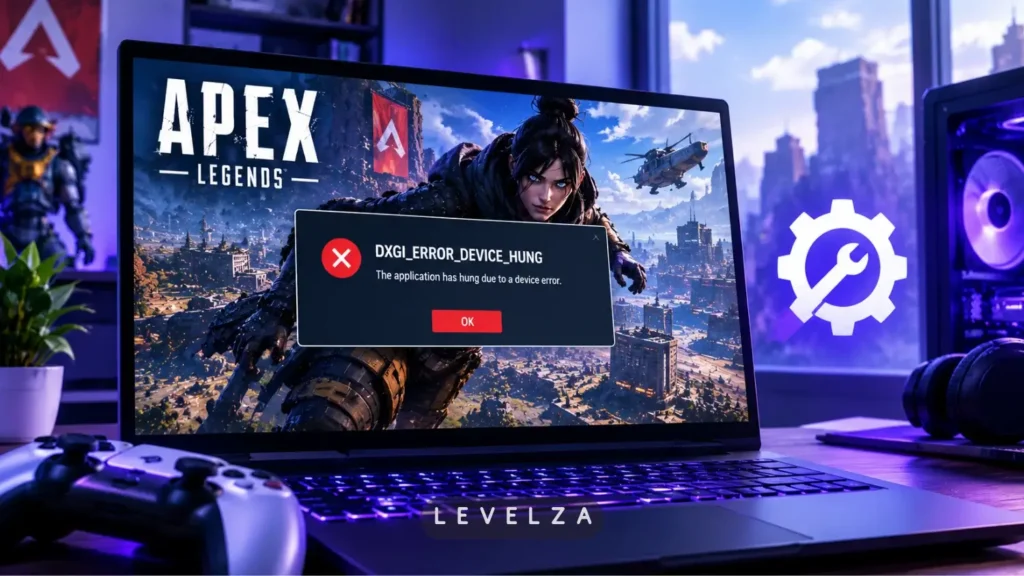
The apex legends dxgi error device hung crash freezes a match mid-firefight and can trigger ranked abandonment penalties before the desktop even reappears. Displaying the code 0x887A0006, this engine failure means the graphics driver stopped responding to commands from the application, so the Windows graphics subsystem terminated the process.
LEVELZA breaks down the driver and hardware synchronization faults behind this error and sets out a sequential troubleshooting protocol, ordered from the most common software causes to hardware clock adjustments.
LEVELZA QUICK FIX
Primary Root Cause: GPU command buffer timeout (TDR) caused by unstable factory GPU boost clocks, corrupted DirectX shader caches, or DirectX 12 beta pipeline conflicts.
- Action 1: Clear the DirectX shader cache via Windows Disk Cleanup and delete the temporary cache files in
%localappdata%\NVIDIA\DXCache(or the AMD equivalent). - Action 2: Enable Debug Mode in NVIDIA Control Panel, or underclock the GPU core clock by -50 MHz in MSI Afterburner, to remove unstable factory voltage overclocks.
- Action 3: Remove
-dx12from the launch options in Steam or the EA App to force stable Direct3D 11 execution.
Escalation Condition: If desktop crashes persist across multiple driver revisions, perform a complete clean driver wipe in Windows Safe Mode using DDU (Display Driver Uninstaller).
Why Apex Legends DXGI Error Device Hung Occurs: Architectural Root Causes
In Apex Legends, the error surfaces when the GPU fails to finish submitted work inside the window Windows allows. The 0x887A0006 code is not a game-specific bug label. It is a DirectX report that the device stopped answering, and three distinct conditions account for most cases: unstable clock behavior, damaged shader data, and stalled graphics queues.
1. Unstable Factory GPU Boost Clocks and Transient Power Spikes
Many modern graphics cards ship with aggressive factory overclocks that push core frequencies beyond reference specifications. These profiles are validated against synthetic loads, which are steadier than the swings produced by a real match.
Apex Legends alternates between quiet indoor looting and chaotic, particle-heavy firefights within seconds. Each transition changes the GPU’s power demand almost instantly, and a card running near the edge of its voltage and clock envelope can drop below the voltage its clock requires. The result is a missed instruction cycle. The driver never receives the completion signal for a command, and DirectX interprets the silence as a hung device.
This is why the error often appears at the most demanding moment of a match rather than at random. It is also why reducing clocks slightly can eliminate it without a visible loss in frame rate.
2. Corrupted DirectX Shader Cache and Pipeline Desynchronization
The game’s heavily modified Source engine compiles and streams pre-baked pipeline state objects through the graphics driver. Those compiled objects are stored on disk so that the engine does not rebuild them on every launch.
Seasonal patches, interrupted driver updates and forced shutdowns can leave fragmented or mismatched shader files behind. When the engine loads a stale object that no longer matches the current driver or game build, it can issue malformed draw calls that the GPU cannot execute. The driver then waits on work that never completes, which ends in the same timeout. The wording of the dialog box, “badly formed commands,” points directly at this class of fault.
3. Windows Timeout Detection and Recovery (TDR) Thresholds
Windows monitors GPU responsiveness through Timeout Detection and Recovery. If the graphics queue does not make progress within the default threshold of roughly two seconds, the operating system resets the display driver instead of letting the whole system freeze.
Several things can stall the queue long enough to cross that line. Hardware-accelerated desktop applications and overlays compete for GPU time, and the experimental DirectX 12 beta renderer can produce pipeline stalls that the mature Direct3D 11 path does not. When the threshold is crossed, the reset closes the game and 0x887A0006 is the visible result.
Step-by-Step Fixes for Apex Legends DXGI Error Device Hung
Work through the fixes in order. Each one targets a different root cause, and testing the game between steps identifies which change resolved the crash.
Fix 1: Purge the Corrupted DirectX Shader Cache via Windows Disk Cleanup
- Press Windows Key + S, type Disk Cleanup, and open the utility.
- Select the primary system drive, typically C:, and click OK.
- Scroll through the list, uncheck all other options, and check DirectX Shader Cache.
- Click OK, then click Delete Files to remove the accumulated pre-compiled shaders.
- Press Windows Key + R, enter
%localappdata%, open the GPU vendor cache folder (for example NVIDIA\DXCache or AMD\DxCache), and delete any remaining cache files. Restart the PC.
The game and driver rebuild a clean cache on the next launch. Expect slightly longer loading and some brief hitching in the first match while shaders recompile.
Fix 2: Enable NVIDIA Debug Mode or Downclock the GPU Core Clock
- NVIDIA users: Right-click the desktop and open NVIDIA Control Panel.
- Click the Help menu on the top navigation bar and check Debug Mode. This forces the card to operate at reference clock speeds and disables factory overclocks.
- AMD users and the universal route: Open MSI Afterburner.
- Locate the Core Clock (MHz) slider and lower it by -50 MHz.
- Click the Checkmark (Apply) icon.
A modest underclock of this size reduces the transient voltage droop that occurs during heavy particle effects. In most cases the effect on in-game frame rate is not noticeable.
Fix 3: Force Direct3D 11 Execution and Remove Experimental Beta Flags
- Steam: Open Library, right-click Apex Legends, and select Properties.
- In the General tab, scroll to the Launch Options field.
- Delete
-dx12if it is present, so the DirectX 12 beta renderer does not handle draw calls. - EA App: Click the three dots (…) on the Apex Legends tile, select View Properties, and clear any experimental command-line flags.
- Launch the game to confirm it runs on the Direct3D 11 pipeline.
Fix 4: Clean-Install GPU Display Drivers via DDU in Safe Mode
- Download the latest stable WHQL driver package from NVIDIA or AMD, along with the latest Display Driver Uninstaller (DDU).
- Disconnect the PC from the internet by unplugging Ethernet or disabling Wi-Fi, which prevents Windows Update from installing a generic driver automatically.
- Boot into Safe Mode: hold Shift while clicking Restart in the Start Menu, then go to Troubleshoot > Advanced Options > Startup Settings > Restart, and press 4.
- Run DDU, select the GPU device type and manufacturer, and click Clean and restart.
- Back in normal Windows, run the downloaded driver installer, select Clean Installation, restart, and reconnect to the internet.
Leftover settings from previous driver versions are a common cause of crashes that survive a standard update. A clean install removes that variable entirely.
Scenarios Where Local Software Tweaks Will Not Resolve the Error
Physical Hardware and Server-Side Limitations
Local software adjustments cannot resolve DXGI_ERROR_DEVICE_HUNG crashes if the physical graphics card suffers from degraded VRAM modules, cracked solder joints, or a failing power supply unit incapable of handling peak transient power spikes. If crashes are accompanied by colored checkerboard artifacts or full PC power shutdowns, the underlying cause is hardware degradation rather than software configuration.
Escalating to Advanced Diagnostics and Crash Telemetry
When all four fixes fail, the crash log identifies which component was executing when the device hung. Apex Legends writes crash information to a text log, typically found under Documents\Apex\logs or %USERPROFILE%\Saved Games\Respawn\Apex.
Open the log in a text editor and check which module appears in the final entries:
nvwgf2umx.dllpoints to an NVIDIA driver timeout.atidxx64.dllpoints to an AMD driver hang.r5apex.exepoints to a memory address exception inside the game process itself.
A driver module in the log supports the clock, cache and driver fixes above. An entry for the game executable suggests a different fault, such as unstable system memory, and warrants memory testing before further GPU changes.
If hardware passes stress testing and crashes continue, export a clean DxDiag report by pressing Windows Key + R, entering dxdiag, and choosing Save All Information. Attach it to an official EA Help ticket together with the crash log.
Players who still see frame-time stuttering or minor thermal instability can reduce overall GPU load by configuring the game according to verified Apex Legends best PC settings.


