

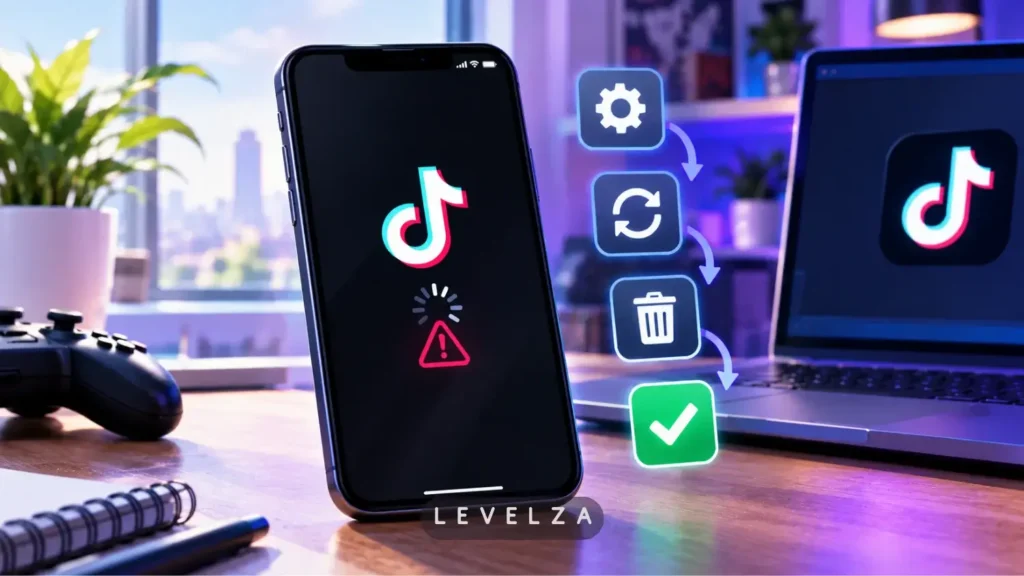
TikTok crashing tends to follow one of three patterns. The app drops to the home screen the instant it launches, it locks up when you tap the search bar, or it ends on a sudden black screen while heavy video buffers load.
Much online advice says to clear all app data or factory reset the device, which needlessly deletes unposted creator drafts and offline recordings. LEVELZA’s diagnostic method instead isolates corrupted cache indexes, system web rendering modules, and session token mismatches one at a time across Android, iOS, and PC desktop environments.
QUICK FIX
Root Cause: Corrupted local video cache buffers, an outdated Android System WebView or iOS memory pressure, or a corrupted session authentication token.
- Force close the app, then run an in-app cache purge through Settings and privacy > Free up space > Clear Cache.
- Update Android System WebView on Android, or restart the device on iOS to flush background memory.
- Turn off any active VPN and reset your network connection to clear stale DNS data.
Escalation Trigger: If crashing persists after an in-place reinstall that preserves your local drafts, escalate to official support with a crash report.
Why TikTok Crashes: The Technical Root Causes
Diagnostic reports point to three distinct failure points inside the TikTok client. Identifying the right one saves time, because treating every crash identically is why generic advice so often fails.
1. Volatile Media Buffer & Cache Database Fragmentation
The app preloads upcoming videos aggressively. That builds a high-volume cache of temporary files, plus index tables that record where each piece of media is stored.
Trouble starts when the index and the files fall out of sync. An abrupt network drop, a forced shutdown, or a nearly full storage partition can leave pointers that reference media that no longer exists. On the next launch, the startup routine may reach for missing data and terminate, a pattern consistent with a null reference fault.
This cause fits crashes that happen immediately at launch. It is also the safest to repair, because it leaves drafts untouched.
2. Operating System Web Runtime & GPU Hardware Acceleration Collisions
Modern hybrid apps do not draw every screen themselves. Overlays, in-app browser views, and some interface layers rely on the system’s web rendering engine: Android System WebView on Android and WebKit on iOS. Video effects and AR stickers also depend on GPU hardware acceleration.
When the system runtime is outdated, rendering a complex overlay, an AR sticker, or a live comment feed can trigger a fatal memory fault. The app closes without an error message because the failure happens below the app layer.
This cause tends to match black-screen launches and crashes tied to one specific feature loading. It also explains why the same app version can behave differently on two devices.
3. Session Authentication Token & Background Sync Deadlocks
At cold boot, the app reconciles its local database with ByteDance’s authentication servers. An expired session token, or mismatched credentials left behind by switching between multiple accounts, can cause the two sides to wait on each other.
A stall that never resolves looks like a freeze or a crash, depending on how the operating system reacts. VPNs and network proxies make it worse because they delay or block the handshake.
This cause fits users who manage several accounts, or whose crashes began after the app sat unused for a while.
Step-by-Step Fixes for TikTok Crashing
Work through these fixes in order. They run from least invasive to most thorough, and none of the first three touch your drafts.
Fix 1: Safe Cache Purging (Preserving Unpublished Drafts)
- Force close TikTok from the app switcher, then reopen it.
- Go to Profile > Settings and privacy.
- Find Free up space, which sits under Cache & Cellular in some versions, and tap Clear Cache.
- Restart the app.
If the app closes before you can reach settings, move to Fix 2 and return to this step afterward.
Never tap Clear Data or Clear Storage in your phone’s system settings while you have unpublished drafts. Drafts live on the device and are not synced to the cloud until you post them, so a system-level wipe removes them.
Fix 2: Updating System Web Runtimes & Flushing Background Memory
On Android:
- Open Google Play Store > Manage apps & device.
- Update Android System WebView and Google Chrome, applying all pending updates.
- Go to Settings > Apps > TikTok > Force Stop, then relaunch.
On iOS:
- Check Settings > General > Software Update and install anything pending.
- Perform a hard restart: press and release Volume Up, press and release Volume Down, then hold the side button until the Apple logo appears.
- Relaunch TikTok.
The hard restart matters because it releases memory that the app and its system components may still be holding inside the iOS sandbox.
Fix 3: Resolving Account Handshake & Network Proxy Conflicts
DNS caching and VPN configurations can block the initialization handshake described earlier. This fix forces a clean connection to the server.
- Disconnect any active VPN tunnel.
- On Android, open Settings > Network & internet > Private DNS and set it to Off or Automatic. The exact path varies by manufacturer.
- On iOS, review Settings > General > VPN & Device Management and remove any DNS or VPN profiles you do not need.
- Switch from Wi-Fi to cellular data, or the reverse, and relaunch the app.
Toggling airplane mode for a few seconds also resets the connection and clears stale network state.
Fix 4: Desktop PWA & Browser Crash Remediation (Windows/Mac)
- In Microsoft Edge or Google Chrome, open the browser’s system settings and turn off Use graphics acceleration when available. In Chrome this is under Settings > System, and in Edge under Settings > System and performance. Restart the browser.
- Open the browser’s site data list (Settings > Privacy and security in Chrome, Settings > Cookies and site permissions in Edge), search for tiktok.com, and delete only that entry. This signs you out but does not remove your uploaded videos.
- On Windows, uninstall the TikTok PWA from Settings > Apps, then reinstall the official package from the Microsoft Store.
Desktop has no locally stored mobile drafts, so this fix carries no draft risk.
When This Fix Does Not Apply
Client-side repair cannot solve every crash. Three situations sit outside its reach.
WARNING — When Client-Side Fixes Will Not Work
- Server-side outages or CDN degradation: If edge servers or DNS fail widely, the app cannot fetch its initial configuration manifest and may exit at once. No cache purge fixes this, so the only remedy is waiting for service to recover.
- Deprecated operating system or hardware: Devices on an obsolete OS build below the platform’s current threshold may fail the cold launch integrity check. Updating the OS is the fix, where the hardware allows it.
- Device-level security flags: Sideloaded modified APKs, and devices that fail Play Integrity checks, can be blocked by the app’s anti-tamper layer. Use only the official store build on a device that passes integrity checks.
A quick way to tell these apart from a local fault is to count affected devices. If several devices fail at once, suspect the service first. If only one device fails, continue with the fixes above.
If Nothing Above Works
When every remedy fails, submit a crash report. It gives support staff diagnostic detail that a public review cannot. Use the desktop web client or a secondary mobile device if the affected phone crashes before settings open.
Go to Profile > Settings and privacy > Report a problem > Crash/Not Responding. Category labels vary by version, so choose the closest match.
Attach these details to make the report actionable:
- The exact device model
- The operating system build number, found in the device’s About screen
- Whether the crash occurs on cellular data, Wi-Fi, or both
- The exact timestamp of the most recent failure, including time zone
A reinstall is a reasonable last step, but protect your drafts first. On iPhone, Settings > General > iPhone Storage > TikTok > Offload App removes the app while keeping its local data for the reinstall. On Android, uninstalling typically removes local data, so post any draft you want to keep as private before reinstalling.
While the mobile installation is being repaired, the desktop route keeps access open. The guide on How to Use TikTok on PC covers the browser and PWA options.


