
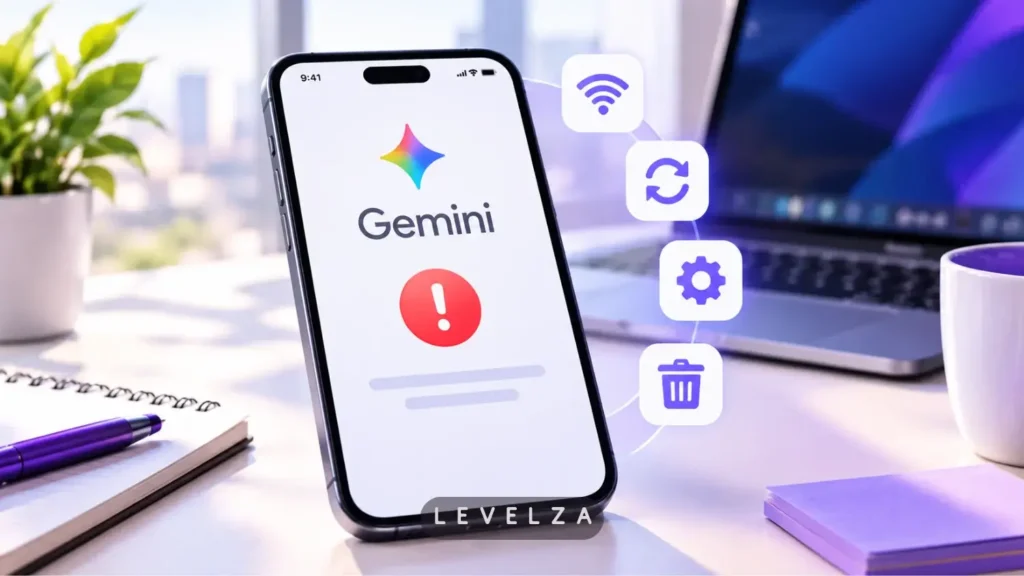
When encountering google gemini not working on Android, iOS, or PC, users are typically confronted with blank loading screens, silent app crashes, or the generic “Something went wrong” dialog during active prompt generation. Generic tech forums tend to recommend repeatedly restarting your phone, but the underlying failure usually stems from out-of-sync Google Play Services security handshakes, token saturation on extended threads, or corrupted Web & App Activity database caching.
LEVELZA has codified the exact diagnostic order to isolate client-side data corruption from server-side account locks without factory resetting your device.
LEVELZA QUICK FIX
Primary Root Cause: Local app cache corruption or Google Play Services authentication token desynchronization.
- Action 1: Force stop the Gemini app and clear storage cache via system application settings.
- Action 2: Toggle “Web & App Activity” off and on inside Google Account privacy controls to reset cloud sync.
- Action 3: Update or clear cache for Google Play Services (Android) or refresh browser PWA service workers (Desktop).
Escalation Condition: If errors persist across multiple devices on the same Google Account, verify server status on the Google Workspace Status Dashboard before attempting profile re-authentication.
Why the Problem Happens: The Root Causes
Understanding Google Gemini as a client that depends on continuous background sync with Google’s servers helps explain why so many of its failures trace back to a handful of recurring mechanisms rather than a single universal bug.
1. Client-Side Cache and Session Token Corruption
Gemini stores active chat state in a localized temporary database on the device. When a prompt encounters a dropped network packet mid-stream — a common event on unstable mobile data or a laptop moving between Wi-Fi networks — the app can be left holding an incomplete JSON fragment representing that in-progress response. On the next launch attempt, the app tries to reload that corrupted thread as part of its normal session restore, and the malformed data triggers an immediate crash rather than a clean recovery.
2. Google Account Permissions & Web Activity Conflicts
Gemini relies on Google’s centralized “Web & App Activity” framework to authenticate and personalize sessions. When account-level privacy policies, enterprise Google Workspace admin controls, or conflicting settings across multiple synchronized Google profiles disagree with each other, Gemini’s authentication handshake fails silently, typically surfacing only as a generic, unhelpful error code rather than a message that points to the actual cause.
3. Background Services & OS Power Management Throttling
Aggressive background-process termination — especially common on heavily customized Android OEM skins — can kill the background listener responsible for voice wake-word detection and quick-launch triggers, even while the main app appears installed and functional. On desktop, overly strict firewall rules or VPN client configurations can filter the WebSocket connections Gemini depends on for real-time token streaming, producing a client that loads visually but never successfully generates a response.
4. Hardware Acceleration & GPU Driver Desynchronization (Desktop/Web)
A less obvious cause on desktop is a conflict inside the browser’s rendering pipeline. gemini.google.com leans on Chromium’s ANGLE backend to accelerate its interface rendering through the system GPU, and when a graphics driver is out of date or mismatched against the browser’s expected API version, the result is often a blank white or solid black page rather than a clear error message.
This is easy to mistake for a server-side outage because nothing on screen indicates a rendering failure — the page simply never paints. It disproportionately affects laptops with switchable integrated/discrete graphics, where the browser and the GPU driver occasionally disagree about which adapter should be handling the render.
Step-by-Step Fixes for Google Gemini Not Working
- Fix 1: Isolate the Chat Thread & Clear App Cache (Android / iOS / Web)
- Path (Android): Settings → Apps → Gemini (or Google) → Storage & Cache → Clear Cache (do not hit Clear Storage yet).
- Path (Desktop/Web): Open browser settings, search for
gemini.google.com, and clear site cookies and service workers. - Open Gemini afterward, start an entirely new chat thread, and abandon the corrupted thread that triggered the original freeze rather than trying to resume it.
- Fix 2: Reset Google Account Handshake via Activity Controls
- Path: myaccount.google.com → Data & Privacy → Web & App Activity.
- Pause Web & App Activity, wait roughly 60 seconds, then turn it back on. This flushes stagnant cloud sync tokens across every device connected to the same account, forcing a clean re-authentication on next launch.
- Fix 3: Update and Clear Google Play Services Framework (Android Specific)
- Path: Settings → Apps → Google Play Services → Storage & Cache → Clear Cache.
- This step matters because Gemini on Android runs as an extension of core Google system services rather than as a fully standalone app. An out-of-sync security certificate inside Play Services will paralyze the assistant regardless of how many times Gemini itself is reinstalled.
- Fix 4: Re-Establish Default Assistant and Voice Permissions
- Path: Settings → Apps → Default Apps → Digital Assistant App → Select Google / Gemini.
- Toggling back to legacy Google Assistant and then re-opting into Gemini re-writes corrupted system intents tied to the assistant role, which commonly restores voice trigger wake words like “Hey Google” that had silently stopped functioning.
- Fix 5: Disable Conflicting Browser Extensions & Reset GPU Acceleration (Desktop / Web Client)
- Path (Test in Incognito): Open a new Incognito / InPrivate window and load
gemini.google.comdirectly — extensions are disabled by default in this mode, isolating whether an ad-blocker or privacy extension is interfering with the page’s scripts. - Path (Disable Hardware Acceleration — Chrome/Edge): Settings → System → Use graphics acceleration when available → toggle off, then fully restart the browser.
- If the page renders correctly with acceleration off, the issue traces back to a GPU driver conflict rather than an account or network problem, and updating the graphics driver directly resolves it going forward.
- Path (Test in Incognito): Open a new Incognito / InPrivate window and load
When This Fix Does Not Apply — Server-Side Outages, Regional Geo-Blocks, and Enterprise Locks.
Device-level fixes cannot resolve every case. Three boundaries to check first: Google Cloud Infrastructure Outages (verify current status on the Google Workspace Status Dashboard before troubleshooting locally), Enterprise Domain Restrictions (a Workspace domain administrator may have explicitly disabled generative AI tools account-wide), and Hardware & OS Floor Limitations (devices running older Android or iOS versions fall below the minimum runtime requirements for modern Gemini components, and no amount of cache-clearing will fix that).
If Nothing Above Works
When the fixes above don’t resolve the issue, the next step is submitting diagnostic logs through the in-app Profile Icon → Help & Feedback → Send Feedback module. Include error timestamps to help identify the failure in server-side logs, and avoid submitting personal passwords or authentication tokens in the feedback text.
On Android specifically, a more thorough diagnostic capture is available through Settings → System → Developer Options → Bug Report, which generates a full system-level log bundle covering the moments immediately before and after a crash. Developer Options must first be unlocked by tapping the build number several times under Settings → About Phone. Attaching this bug report file to a support ticket gives Google’s backend engineers far more diagnostic context than a manual description of the crash alone, and it’s the recommended step before escalating a persistent, device-specific failure.
Google One AI Premium subscribers have an additional escalation path: direct live chat or email support accessible through the Google One Member portal, which typically resolves account-specific lockouts faster than the general feedback channel. Once basic connectivity is restored, consult our guide on how to use Google Gemini to properly configure Workspace extensions and daily workflows going forward.


